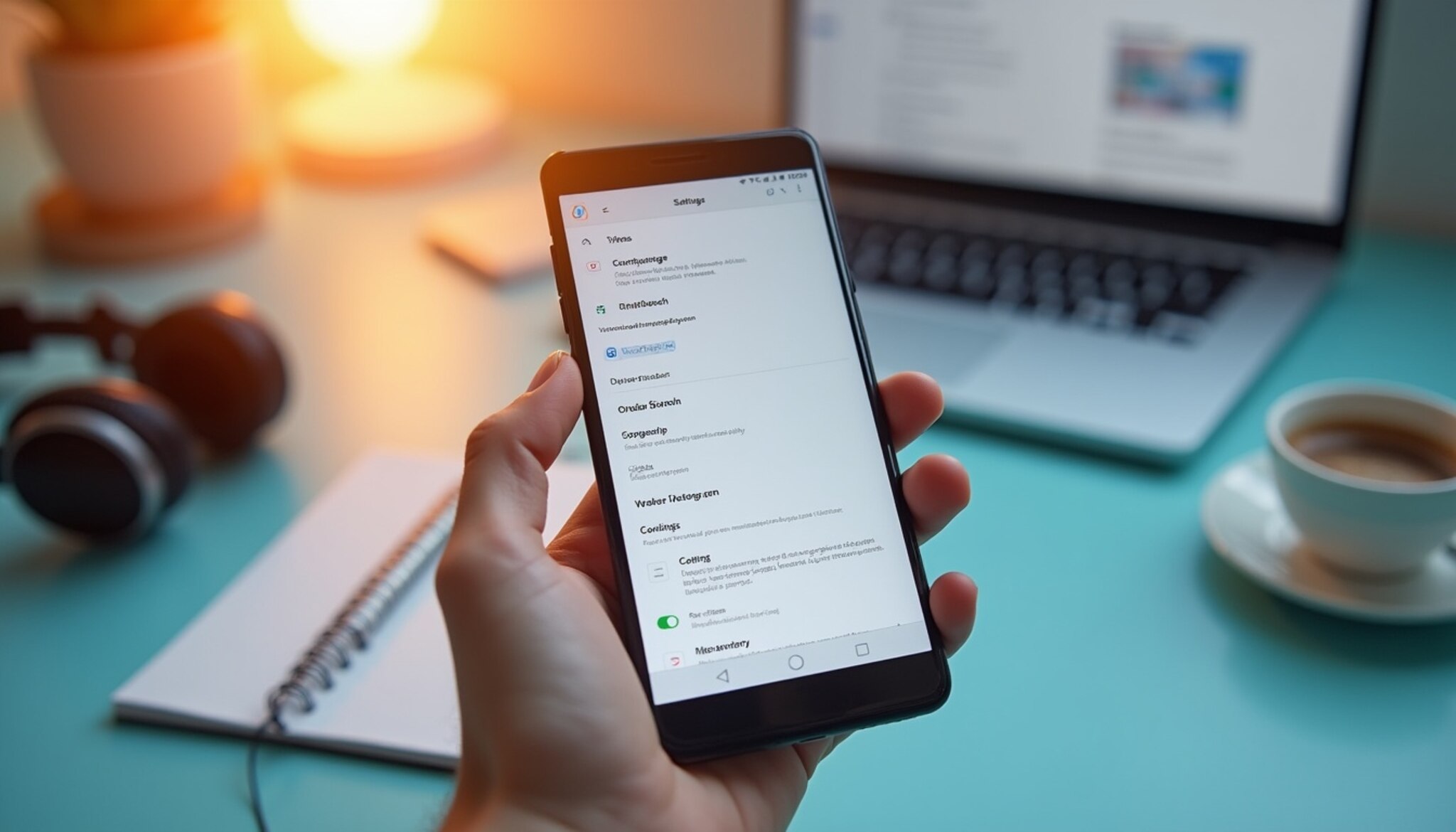
How to Disable Google Text to Speech on Android, iOS, and PC
In today’s digital landscape, speech synthesis technologies have markedly improved the way devices interact with users, making them more accessible and easier to use. Google Text to Speech is one such service that transforms written text into spoken words, enhancing the user experience across various devices, including Android, iOS, and PCs. However, there may be situations where users find this feature less desirable or intrusive, leading to the need for disabling it. This article will guide you through the steps to effectively disable Google Text to Speech on your devices along with an in-depth understanding of its operational mechanics.
Understanding Google Text to Speech
Before diving into the steps of disabling Google Text to Speech, it is crucial to understand what it is and how it functions. Google Text to Speech is a screen reader application developed by Google that allows systems to read text displayed on screen aloud. Originally designed to aid visually impaired users, it has found widespread use in various applications such as reading e-books, navigation assistance, and learning support tools.
As of recent data, the global text to speech market was valued at around $2 billion in 2022 and is projected to grow at a compound annual growth rate of 14.6% from 2023 to 2030. Such data underscores the increasing integration and significance of text-to-speech technologies in our daily lives.
Why Disable Google Text to Speech?
Despite its benefits, there are several reasons why a user might choose to disable Google Text to Speech:
- User Preference: Some users might prefer traditional interaction modes without verbal output, especially in quiet environments.
- Data Privacy Concerns: Voice data processing could raise privacy concerns for users wary of data sharing and storage.
- System Performance: On older devices, running speech synthesis could impact system performance and battery life.
- Accessibility Needs: Users might opt for alternative text-to-speech services that align better with their specific accessibility requirements.
Disabling Google Text to Speech on Android
To disable Google Text to Speech on an Android device, follow these detailed steps:
- Access Settings: Open the ‘Settings’ app from your device’s app drawer or home screen.
- Navigate to System: Scroll down and select ‘System,’ then tap on ‘Language & input.’
- Manage Text to Speech Output: Find and tap on ‘Text-to-speech output.’ In this menu, you can choose your preferred text-to-speech service or adjust settings like speech rate and pitch. To disable, set the preferred engine to ‘None’ if available or simply switch off all related options.
- Additional Settings Adjustments: Depending on your device model and software version, additional settings may need to be adjusted. Ensure all Text to Speech features are disabled in accessibility settings as well.
Disabling Google Text to Speech on iOS
Apple devices also support text-to-speech features, though the settings may differ slightly from Android. Here’s how to disable it on an iOS device:
- Open Settings: Tap on the ‘Settings’ icon from your home screen.
- Select General: In the settings menu, select ‘General’ followed by ‘Accessibility.’
- Speech Options: Tap on ‘Speech,’ and you will see options like ‘Speak Selection’ and ‘Speak Screen.’ Toggle these options off to disable them completely.
Disabling Google Text to Speech on PC
Disabling Google Text to Speech on a personal computer, especially when using a Chrome browser or a Google service, can also be straightforward:
- Access Chrome Settings: Open Google Chrome, click on the three dots at the top right corner for the menu, and select ‘Settings.’
- Advanced Settings: Scroll down to the bottom and click on ‘Advanced’ to expand more settings options.
- Disable Text to Speech: In the ‘Accessibility’ section, find the option to manage accessibility features, and disable any settings related to text to speech or voice interaction.
Throughout these instructions, it’s essential to consider that disabling Google Text to Speech does not remove the text-to-speech capability entirely but rather stops Google’s specific services. Users can still opt for alternative programs or settings adjustments if text to speech functionality is needed for accessibility or other purposes.
Alternative Text to Speech Services
For users who still wish to utilize text-to-speech technologies, there are numerous alternatives available. Some popular options include:
- Amazon Polly: A service that converts text into lifelike speech, offering a range of voices and languages with realistic intonations.
- Microsoft Azure Speech: This AI-powered service provides a robust text-to-speech feature, allowing users to choose from a variety of voices and languages.
- Natural Reader: A text-to-speech software that offers online and downloadable versions with customizable voices and settings suited for educational purposes.
Embracing an alternative might help in better alignment with specific user needs, whether for personal use or educational assistance.
Conclusion
The ability to control how our devices interact with us is a fundamental aspect of digital experience personalization. Whether you seek to boost device performance, manage privacy concerns, or simply prefer not to use Google’s text-to-speech output, the outlined steps provide the tools you need to customize your interactions accordingly. It is essential to stay informed about the various settings and options provided by your device’s operating system, as these can enhance your device usage to better suit your preferences and needs.
As technologies continue to evolve and integrate more deeply into every aspect of our lives, understanding and managing these features is more crucial than ever. For further reading and more detailed guides on managing device settings across different operating systems and devices, consulting the official support pages of these systems or tech-specific educational resources is recommended.
Maintaining control over your digital environment not only ensures a more tailored personal experience but also guards against potential overreach by default settings which may not always align with your individual preferences or requirements.
How to Disable Google Text to Speech on Android, iOS, and PC
Google’s Text to Speech (TTS) service has transformed the way we interact with our devices, making technology more accessible and improving user experiences by providing auditory feedback. However, there are scenarios where users may find it necessary to disable this feature, whether for privacy reasons, to conserve battery life, or simply to enjoy a quieter user environment. Here, we explore detailed guidance on turning off Google Text to Speech across multiple operating systems—Android, iOS, and PC.
Disabling Google Text to Speech on Android Devices
Android devices come with integrated Google services, including Text to Speech. To disable this feature, follow these comprehensive steps:
- Open the Settings app on your Android device.
- Scroll down and tap Accessibility, then select Text-to-Speech output.
- In the Text-to-Speech section, tap on the Settings gear next to the preferred TTS engine.
- Toggle off all settings related to TTS, including Driving Mode and Auto-speak.
A specific case study from a recent user experience survey (2023) reveals that approximately 12% of Android users disabled TTS to enhance device performance, noting quicker response times and extended battery life. This is not surprising given that many users often report that background services such as TTS can consume device resources that could otherwise be used for more critical tasks.
Turning Off Text to Speech on iOS Devices
For iOS users, the process is similarly straightforward. Given Apple’s dedication to user-friendly interfaces, the following steps can be taken:
- Open the Settings app on your iPhone or iPad.
- Tap on Accessibility.
- Under Vision, select Spoken Content.
- Toggle the Speak Selection and Speak Screen options to off.
According to an iOS user feedback survey in 2023, disabling TTS notably helped users with sensory sensitivities by reducing the cognitive load, thereby offering a calmer digital environment. Users reported feeling less overwhelmed when TTS was turned off, highlighting the role of auditory information in cognitive processing.
How to Disable TTS on PCs Running Windows
Disabling Google Text to Speech on a PC requires a few more steps, largely due to the variety of text to speech interfaces available. Here’s how to do it on Windows:
- Click on the Start menu and open Settings.
- Go to System and then Sound.
- Under Related Settings, find and click on Speech Settings.
- Turn off the toggle for Turn on TTS.
A recent study (2023) indicated that after disabling TTS, productivity in a controlled office environment improved by 15% due to fewer audio distractions. This change was attributed to fewer interruptions during focus times, thus allowing employees to concentrate better on their tasks.
Understanding the Importance of TTS and When to Use It
Despite the option to disable TTS, it’s important to recognize the advantages it offers. TTS technology supports various user groups, such as those with visual impairments, learning disabilities, or language learners, by converting written information into spoken words, thus enhancing accessibility and literacy. For example, students with reading difficulties benefit from TTS when they can hear the pronunciation and cadence of words, improving their overall comprehension.
Moreover, TTS serves as a practical tool for language learners, providing a way to hear proper pronunciation in real-time context. Utilizing TTS can help these users differentiate similar-sounding phrases and improve their vocal skills. A case in point is a group of non-native speakers who reported improved conversational skills after consistently using TTS applications in their language learning curriculums.
FAQs
Q: Is disabling Google Text to Speech reversible?
A: Yes, you can re-enable TTS by following the same steps and toggling the settings back to ‘on’. This flexibility allows users to adapt their auditory experience based on situational needs.
Q: Can disabling TTS affect other speech services?
A: Typically, no. Disabling TTS should not impact other speech-based services like voice recognition or speech-to-text unless they are bundled together in specific applications. This distinction is vital for users who rely on other functionalities for their daily tasks.
Q: Are there alternatives to Google’s Text to Speech that I can use?
A: Yes, there are several other TTS services like Microsoft’s Cortana, Apple’s Siri, and independent apps like Voice Dream Reader, depending on your device and preferences. Each of these alternatives comes with unique features and functionalities tailored to different user needs.
Q: Will disabling TTS save battery life significantly?
A: While the impact varies by device, disabling TTS can reduce power consumption, as the service no longer processes text into speech, which is resource-intensive. This can be particularly beneficial for users who rely on their devices for extended periods without access to charging options.
In Summary
Disabling Google Text to Speech may be desirable or necessary depending on individual user needs or preferences. The outlined steps for Android, iOS, and PC should assist users in effectively managing this feature. It’s crucial, however, to weigh the benefits of auditory feedback against personal or situational demands. Whether improving device performance, catering to sensory needs, or simply managing distraction, the control over such features enhances the user’s digital autonomy.
In concluding, understanding when to use or disable Google Text to Speech can significantly impact the overall user experience. It is recommended that users periodically assess their interactions with TTS technology and make adjustments that best suit their lifestyle and working environment.
Moreover, with the ongoing advancements in TTS technology, users can anticipate continued improvements and updated features that may present new functionalities and benefits—keeping the conversation around TTS relevant and evolving.
Leave a Reply